 Scale
ScaleOptimizing Shopify Store Performance: Developer's Guide
Advanced Shopify performance optimization techniques for developers. Covers Liquid rendering, JavaScript defer strategies, critical CSS, lazy loading patterns, and Core Web Vitals fixes.

Summarize with ChatGPT
Click to open ChatGPT with prompt ready - just press Enter!

Introduction
Most Shopify performance guides tell you to compress images and remove unused apps. That advice is fine for store owners. It is useless for developers.
This guide is different. It covers the technical details of Shopify performance optimization—the Liquid patterns that kill server response time, the JavaScript architectures that block rendering, the CSS strategies that eliminate layout shift, and the lazy loading implementations that actually work.
We have optimized over 50 Shopify stores, taking mobile PageSpeed scores from the 20s and 30s to the 70s and 80s. Some to 90+. The techniques here come from that work.
If you are a developer working on Shopify themes, a technical founder trying to understand what your agency should be doing, or an in-house team responsible for store performance, this guide gives you the specific, implementable knowledge you need.
Let us get into it.
Understanding What You Are Optimizing For
Before touching code, understand the metrics that matter and how Shopify's architecture affects them.
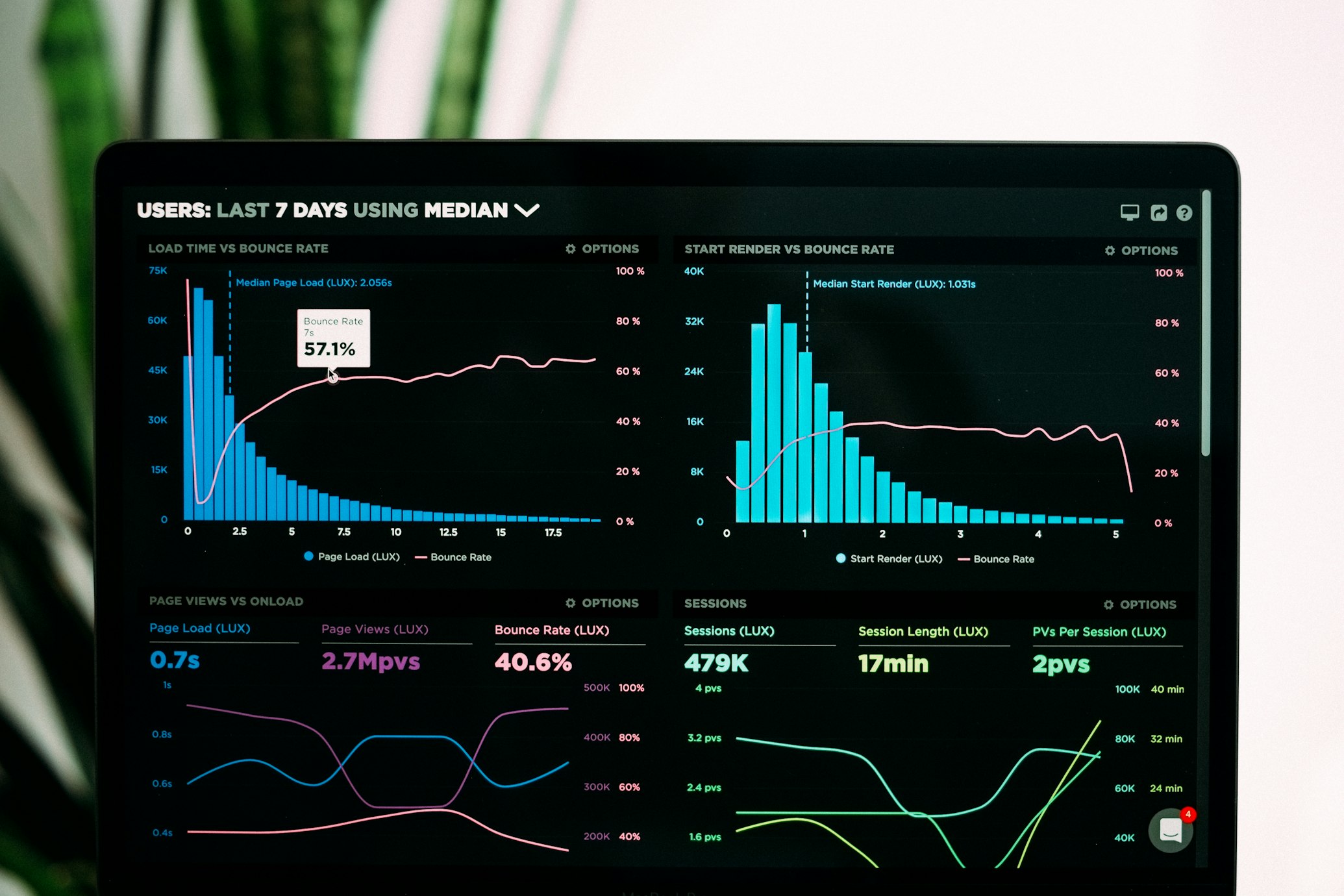
Core Web Vitals Breakdown
Google's Core Web Vitals are the metrics that impact both user experience and search rankings:
Largest Contentful Paint (LCP): Time until the largest visible element renders. For most Shopify stores, this is the hero image or main product image. Target: under 2.5 seconds.
Interaction to Next Paint (INP): Responsiveness when users interact. Measures delay between tap/click and visual response. Target: under 200 milliseconds.
Cumulative Layout Shift (CLS): Visual stability. Elements moving around as the page loads. Target: under 0.1.
Each metric has different optimization strategies. Improving one can sometimes hurt another. You need to understand the tradeoffs.
Shopify's Architecture Constraints
Shopify is not a typical web application. Understanding its constraints shapes optimization strategy:
Liquid renders server-side. Every page request runs Liquid templates on Shopify's servers. Slow Liquid = slow Time to First Byte (TTFB). You cannot cache Liquid output yourself.
CDN is automatic but limited. Shopify serves assets through their CDN, but you do not control cache headers or edge logic.
Checkout is untouchable. You cannot optimize Shopify's checkout pages (except minor customizations on Plus).
App scripts are injected. Apps add JavaScript via ScriptTags that you cannot directly control without uninstalling the app.
Theme architecture matters enormously. A well-architected theme can score 90+ on mobile. A poorly architected theme with the same features scores 30.
Measuring Correctly
Before optimizing, establish accurate baselines:
- Use PageSpeed Insights with the "Origin Summary" to see real user data, not just lab tests
- Test on throttled connections. Chrome DevTools → Network → Slow 3G simulates real Indian mobile conditions better than your office WiFi
- Test multiple page types. Homepage, collection page, product page, and cart page often have different bottlenecks
- Measure TTFB separately. High TTFB indicates Liquid/server issues. Normal TTFB with slow LCP indicates frontend issues
- Use WebPageTest for waterfall analysis. It shows exactly what loads when and what blocks what
- Clear cache between tests. Shopify's CDN caching can give misleadingly fast results on repeat tests
Liquid Optimization
Liquid rendering happens on Shopify's servers before the page reaches the browser. Inefficient Liquid directly increases TTFB.

Avoid N+1 Query Patterns
The most common Liquid performance killer is nested loops that multiply database queries.
Bad pattern:
{% for product in collection.products %}
  {% for variant in product.variants %}
    {% for option in variant.options %}
      {{ option }}
    {% endfor %}
  {% endfor %}
{% endfor %}
If the collection has 50 products, each with 5 variants, each with 3 options, you are iterating 750 times. Shopify's Liquid engine handles this, but it is not free.
Better pattern:
{% for product in collection.products limit: 12 %}
  {% assign first_variant = product.variants.first %}
  {{ first_variant.title }}
{% endfor %}
Always limit collection loops. Always question whether you need nested iteration.
Use assign for Repeated Calculations
Every time you access an object property, Liquid evaluates it. Repeated access means repeated evaluation.
Inefficient:
{{ product.price | money }}
{{ product.price | money }}
{{ product.price | money }}
Efficient:
{% assign formatted_price = product.price | money %}
{{ formatted_price }}
{{ formatted_price }}
{{ formatted_price }}
This matters more for complex calculations:
{% assign discounted_price = product.price | times: 0.9 | money %}
Calculate once, use many times.
Minimize render and include Tags
Each render or include tag has overhead. Loading dozens of snippets per page adds up.
Instead of:
{% for product in collection.products %}
  {% render 'product-card', product: product %}
{% endfor %}
Where product-card itself renders multiple sub-snippets, consider flattening critical path components.
For performance-critical sections like collection grids, inline the code rather than using multiple nested renders. Yes, this hurts maintainability slightly. The performance gain is often worth it.
Conditional Loading
Do not render what is not needed:
{% if section.settings.show_reviews %}
  {% render 'product-reviews' %}
{% endif %}
This seems obvious but many themes render hidden elements and hide them with CSS. The Liquid still executes. The HTML still ships. Only hide with CSS what cannot be conditionally excluded in Liquid.
JavaScript Optimization
JavaScript is typically the biggest performance problem on Shopify stores. Most themes ship 500KB-2MB of JavaScript, much of it render-blocking.

Defer Everything Possible
The default script tag blocks rendering:
<script src="app.js"></script>
The browser stops parsing HTML, downloads the script, executes it, then continues. This destroys LCP.
Use defer for scripts that do not need to run immediately:
<script src="app.js" defer></script>
Defer downloads in parallel with HTML parsing and executes after parsing completes.
Use async for independent scripts like analytics:
<script src="analytics.js" async></script>
Async downloads in parallel and executes as soon as downloaded (potentially before HTML parsing completes).
For most theme JavaScript, defer is correct. The page should be visible before your JavaScript runs.
Critical vs Non-Critical JavaScript
Audit your JavaScript and categorize:
Critical (must load early):
- Cart functionality (add to cart must work)
- Navigation (mobile menu must open)
- Core product functionality (variant selection)
Non-Critical (can load later):
- Review widgets
- Wishlist functionality
- Recently viewed products
- Chat widgets
- Social proof popups
- Analytics beyond basic page tracking
Non-critical JavaScript should load after the page is interactive.
Lazy Load Non-Critical Scripts
For widgets that appear below the fold or after user interaction, load them on demand:
// Load reviews widget when reviews section enters viewport
const reviewsSection = document.querySelector('.reviews-section');

if (reviewsSection) {
  const observer = new IntersectionObserver((entries) => {
    entries.forEach(entry => {
      if (entry.isIntersecting) {
        loadReviewsWidget();
        observer.disconnect();
      }
    });
  });
  observer.observe(reviewsSection);
}

function loadReviewsWidget() {
  const script = document.createElement('script');
  script.src = 'reviews-widget.js';
  document.body.appendChild(script);
}
This pattern delays loading until the user scrolls near the content. For above-the-fold elements, the script loads almost immediately. For below-fold elements, it may never load if the user does not scroll.
Delay Third-Party Scripts
Chat widgets, social proof tools, and marketing scripts often load 200-500KB of JavaScript each. Delay them:
// Load chat widget after 5 seconds or user interaction
let chatLoaded = false;

function loadChat() {
  if (chatLoaded) return;
  chatLoaded = true;

  // Insert chat widget script
  const script = document.createElement('script');
  script.src = 'https://chat-widget.com/embed.js';
  document.body.appendChild(script);
}

// Load on scroll
window.addEventListener('scroll', loadChat, { once: true });

// Load on any click
window.addEventListener('click', loadChat, { once: true });

// Fallback: load after 5 seconds anyway
setTimeout(loadChat, 5000);
This keeps your initial page load fast while ensuring the widget eventually loads.
Remove jQuery If Possible
Many Shopify themes still use jQuery (87KB minified). Modern JavaScript can do everything jQuery does.
If your theme uses jQuery minimally, consider removing it:
// jQuery
$('.menu-toggle').click(function() {
  $('.menu').toggleClass('active');
});

// Vanilla JavaScript
document.querySelector('.menu-toggle').addEventListener('click', () => {
  document.querySelector('.menu').classList.toggle('active');
});
If jQuery is deeply integrated, removing it may not be worth the effort. But new code should use vanilla JavaScript, and gradual migration can happen over time.
CSS Optimization
CSS issues primarily cause layout shift (CLS) and can contribute to slow LCP if stylesheets block rendering.

Critical CSS Inlining
The fastest CSS is inline CSS in the <head>. It requires no additional network request.
Identify critical CSS—styles needed for above-the-fold content—and inline them:
<head>
  <style>
    /* Critical CSS for above-the-fold content */
    .header { ... }
    .hero { ... }
    .hero-image { ... }
    /* Keep this minimal - 10-15KB max */
  </style>

  <!-- Load full stylesheet asynchronously -->
  <link rel="preload" href="theme.css" as="style" onload="this.onload=null;this.rel='stylesheet'">
  <noscript><link rel="stylesheet" href="theme.css"></noscript>
</head>
Extracting critical CSS manually is tedious. Tools like Critical (npm package) can automate this, but require a build process.
Reduce CSS File Size
Shopify themes often ship 200-500KB of CSS. Much of it is unused.
Audit with Chrome DevTools Coverage tab:
- Open DevTools → More tools → Coverage
- Reload page
- See percentage of CSS actually used
Most themes use only 20-40% of their CSS on any given page.
Solutions:
- Remove unused CSS: Tools like PurgeCSS can strip unused styles, but require careful configuration to avoid removing dynamically-applied classes
- Split CSS by page type: Load base styles everywhere, page-specific styles only where needed
- Reduce framework bloat: If using Bootstrap or Tailwind, configure to include only used components/utilities
Fix Layout Shift from Web Fonts
Web fonts are a major CLS source. The page renders with fallback fonts, then shifts when custom fonts load.
Use font-display: swap to show text immediately:
@font-face {
  font-family: 'CustomFont';
  src: url('custom-font.woff2') format('woff2');
  font-display: swap;
}
Preload critical fonts:
<link rel="preload" href="custom-font.woff2" as="font" type="font/woff2" crossorigin>
Limit font weights and styles. Each weight/style is a separate file:
- Bad: 6 weights × 2 styles = 12 font files
- Good: 3 weights × 1 style = 3 font files
Consider system fonts for body text. System fonts load instantly:
body {
  font-family: -apple-system, BlinkMacSystemFont, 'Segoe UI', Roboto, Oxygen, Ubuntu, sans-serif;
}
Prevent Layout Shift from Images
Images without dimensions cause layout shift as they load.
Always specify width and height:
<img src="product.jpg" width="400" height="400" alt="Product">
Or use aspect-ratio in CSS:
.product-image {
  aspect-ratio: 1 / 1;
  width: 100%;
  height: auto;
}
For responsive images, aspect-ratio is cleaner than padding-bottom hacks.
Image Optimization
Images typically account for 50-80% of page weight. Optimization here has outsized impact.

Use Modern Formats
WebP is 25-35% smaller than JPEG at equivalent quality. AVIF is even smaller but has less browser support.
Shopify automatically serves WebP when you use the image_url filter correctly:
{{ product.featured_image | image_url: width: 400 | image_tag }}
This generates a responsive image with WebP for supporting browsers.
Do not use the old img_url filter:
<!-- Old, does not support WebP -->
{{ product.featured_image | img_url: '400x400' }}
Implement Responsive Images
Serve appropriately sized images for each device:
{{ product.featured_image | image_url: width: 800 | image_tag:
  widths: '200, 400, 600, 800',
  sizes: '(max-width: 600px) 100vw, 400px'
}}
This generates:
- srcset with multiple sizes
- sizes attribute telling browser which size to choose
- Browser downloads only the appropriate size
For a product grid showing 4 columns on desktop, images need to be ~300px wide, not 1200px. Responsive images ensure mobile users download mobile-sized images.
Lazy Load Below-Fold Images
Native lazy loading is simple and effective:
<img src="product.jpg" loading="lazy" alt="Product">
The browser defers loading until the image approaches the viewport.
Critical above-the-fold images should NOT be lazy loaded. Your hero image and first few product images should load immediately:
<!-- Hero image - load eagerly -->
<img src="hero.jpg" loading="eager" fetchpriority="high" alt="Hero">

<!-- Below fold - lazy load -->
<img src="product.jpg" loading="lazy" alt="Product">
The fetchpriority="high" attribute tells the browser to prioritize the hero image.
Preload LCP Image
Your Largest Contentful Paint element is often an image. Preload it:
<link rel="preload" href="{{ section.settings.hero_image | image_url: width: 1200 }}" as="image">
Place this in the <head> before any render-blocking resources. The browser starts downloading immediately rather than waiting to discover the image in HTML.
Third-Party Script Management
Apps and third-party tools are often the biggest performance killers. Managing them requires strategy.

Audit Installed Apps
Go to Settings → Apps and sales channels. For each app, check:
- Is it actively used?
- What JavaScript does it add?
- Is that JavaScript render-blocking?
To see what an app adds, check your theme.liquid for ScriptTags and search for the app's code in your theme files.
Many apps add JavaScript to every page even when their functionality is only needed on specific pages.
Request Conditional Loading from App Vendors
Some apps offer settings to load only on specific pages. If not available as a setting, ask the vendor. Many will accommodate reasonable requests.
For example, a reviews app should only load JavaScript on product pages, not collection pages or homepage.
Remove App Residue
Uninstalling an app does not always remove its code. Check:
- Snippets folder for app-related files
- Theme.liquid for remaining script tags or includes
- Other template files for app-specific code
Search your theme code for the app name or common identifiers.
Use Google Tag Manager Strategically
GTM can centralize third-party script management:
Pros:
- Single container script instead of many individual scripts
- Easy to add/remove scripts without theme changes
- Built-in triggers for page-specific loading
Cons:
- GTM itself adds overhead
- Misconfigured GTM can hurt performance
- Creates dependency on GTM for critical functionality
If you have many marketing/analytics scripts, GTM's organization benefits may outweigh its overhead. If you have few scripts, direct implementation with proper defer/async is often faster.
Performance Monitoring
Optimization is not a one-time project. Performance degrades as content changes, apps are added, and updates are made.

Set Up Real User Monitoring
Lab tests (PageSpeed Insights) are useful but do not capture real user experience.
Google's CrUX (Chrome User Experience Report) provides real user data:
- Access via PageSpeed Insights "Origin Summary"
- Access via Search Console Core Web Vitals report
- Access via BigQuery for detailed analysis
For more granular data, implement your own RUM:
// Basic RUM implementation
new PerformanceObserver((list) => {
  for (const entry of list.getEntries()) {
    // Send to your analytics
    sendToAnalytics({
      metric: entry.name,
      value: entry.value,
      page: window.location.pathname
    });
  }
}).observe({ type: 'largest-contentful-paint', buffered: true });
Libraries like web-vitals (Google's npm package) simplify this.
Automate Performance Testing
Run PageSpeed tests automatically:
- After every theme deploy: Catch regressions before they affect users
- Weekly on key pages: Track trends over time
- When adding new apps: Measure impact immediately
Tools like SpeedCurve, Calibre, or custom scripts using PageSpeed API enable automated testing.
Create Performance Budgets
Set limits that trigger alerts:
- LCP must be under 2.5s
- Total JavaScript under 300KB
- Total CSS under 100KB
- Total images under 1MB
When a budget is exceeded, investigate before deploying.
Checklist: Performance Optimization Audit
Use this checklist when optimizing a Shopify store:
Liquid
- Collection loops limited to necessary products
- No unnecessary nested loops
- Repeated values assigned to variables
- Conditional rendering instead of CSS hiding
- Minimal use of render/include in critical path
JavaScript
- All non-critical scripts deferred or async
- Third-party widgets lazy loaded
- Chat/support widgets delayed until interaction
- jQuery usage minimized or eliminated
- Code split by page type
CSS
- Critical CSS inlined
- Full CSS loaded asynchronously
- Unused CSS removed or split out
- font-display: swap on all custom fonts
- Critical fonts preloaded
- Limited font weights/styles
Images
- All images use image_url filter (not img_url)
- Responsive images with srcset/sizes
- Lazy loading on below-fold images
- LCP image preloaded
- No oversized images (audit with DevTools)
Third-Party
- All apps audited for necessity
- App residue removed from uninstalled apps
- Scripts loaded only on pages where needed
- No duplicate functionality between apps
Measurement
- Baseline scores documented
- Real user monitoring implemented
- Performance budgets defined
- Automated testing configured
Conclusion
Shopify performance optimization is not about any single technique. It is about systematically addressing every layer: server-side Liquid rendering, JavaScript loading and execution, CSS delivery, image optimization, and third-party script management.
The stores that achieve 80+ PageSpeed scores apply all of these techniques together. They have efficient Liquid, minimal render-blocking JavaScript, inlined critical CSS, optimized responsive images, and controlled third-party scripts.
The work is technical and requires developer expertise. But the results are measurable: faster load times, better Core Web Vitals, improved search rankings, and higher conversion rates.
If you want a professional performance audit of your Shopify store with specific, prioritized recommendations, we provide detailed technical audits that identify exactly what is slowing your store and how to fix it.
Frequently Asked Questions
What is a good PageSpeed score for a Shopify store?
Aim for 70+ on mobile and 85+ on desktop. Scores above 80 on mobile put you in the top tier of Shopify stores. Focus on Core Web Vitals (LCP under 2.5s, INP under 200ms, CLS under 0.1) rather than the composite score alone.
Why is my Shopify store slow even with a fast theme?
Apps are the most common cause. Each app adds JavaScript that loads on every page. Audit your apps, remove unused ones, and request conditional loading from vendors. Also check for leftover code from previously uninstalled apps.
Does Shopify automatically optimize images?
Shopify automatically serves WebP format when you use the image_url filter, but you must still implement responsive images (srcset/sizes) and lazy loading. Shopify does not automatically resize images to appropriate dimensions for each use case.
How do I reduce Cumulative Layout Shift on Shopify?
Reserve space for images using width/height attributes or aspect-ratio CSS. Use font-display: swap for custom fonts and preload critical fonts. Reserve space for third-party embeds before they load. Avoid inserting content above existing content.
Should I use a page builder app for Shopify?
Page builders add significant JavaScript overhead. For performance-critical pages, custom Liquid development is faster. If using a page builder, disable it on pages where you do not need it and audit its performance impact regularly.
Frequently Asked Questions
What's a good PageSpeed score for Shopify stores?
Aim for 70+ on mobile and 85+ on desktop. Scores above 80 on mobile put you in top tier of Shopify stores. Focus more on Core Web Vitals (LCP under 2.5s, INP under 200ms, CLS under 0.1) than composite score, as these directly impact rankings and conversions.
How do I optimize Liquid code for better performance?
Use paginate for large collections instead of for loops, implement fragment caching for expensive operations, limit nested loop depth, use assign to cache repeated calculations, avoid Liquid filters inside loops, use product.metafields sparingly, and structure data to minimize object access.
Why is my Shopify store slow even with a fast theme?
Apps are the most common cause. Each app adds JavaScript loading on every page. Audit installed apps, remove unused ones, request conditional loading from vendors, and check for leftover code from uninstalled apps. We regularly see 25-40 apps installed with only 10-15 actively used.
How do I reduce JavaScript execution time on Shopify?
Implement code splitting to load only necessary JS per page, use dynamic imports for non-critical features, defer third-party scripts with async/defer attributes, remove unused app scripts, minify and compress all files, use service workers for caching, and move inline scripts to external files.
Does Shopify automatically optimize images?
Shopify serves WebP when you use image_url filter, but you must implement responsive images (srcset/sizes) and lazy loading manually. Shopify doesn't automatically resize images to appropriate dimensions for each use case—you need to specify widths in your Liquid code.
How can I fix Cumulative Layout Shift on Shopify?
Reserve space for images using width/height attributes or aspect-ratio CSS, use font-display: swap for custom fonts and preload critical fonts, reserve space for third-party embeds before load, avoid inserting content above existing content, and set explicit dimensions for ads/iframes.
Should I use page builder apps for Shopify?
Page builders add significant JavaScript overhead. For performance-critical pages, custom Liquid development is faster. If using page builder, disable it on pages where not needed and audit performance impact regularly. Consider headless architecture for complex custom layouts without performance penalty.

Written by Rishabh Jain
The ScaleFront team helps Shopify brands optimize their stores, improve conversion rates, and scale profitably.
Get in touch →Get Shopify Tips in Your Inbox
Join 1,000+ store owners getting weekly insights on Shopify optimization, conversion tactics, and growth strategies.
No spam. Unsubscribe anytime.
Need Expert Help with Your Shopify Store?
Get a free consultation with our Shopify optimization experts. We have helped dozens of brands improve their store performance and increase conversions.
Related Articles

Case Study: Converting Complex Figma Designs to Shopify for a Premium Beauty Brand
Real case study: How we converted complex Figma designs to Shopify for a beauty brand. Challenges, solutions, code examples, and results. $38K investment, 9-week timeline.

How to Convert Figma Designs to Shopify: The Complete Guide
Learn how to convert Figma designs to Shopify themes. Step-by-step process, tools, code examples, and best practices from professional developers. Custom vs theme approaches.

Custom Shopify App vs Existing App: When to Build (2025 Guide)
Paying ₹50k/month in app fees? Learn exactly when custom Shopify development makes sense vs using existing apps—with real cost comparisons and a decision framework.